


Text Components Guide
Overview
In addition to the standard <text> and <textarea> elements, there are some
extra components that can be used for rendering text on the device.
Dynamic Textarea
The dynamic-textarea component behaves like a standard <textarea> except
that it's height is automatically adjusted to fill its contents. Elements placed
directly below and positioned with the y="$" value will automatically position
themselves below dynamic-textarea, regardless of the size of the contents.
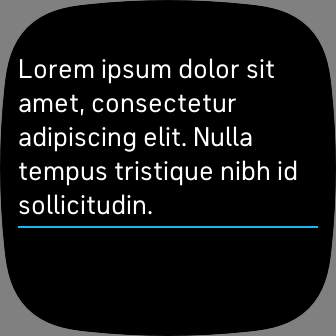
<svg>
  <svg class="horizontal-pad">
    <use href="#dynamic-textarea" class="p2 foreground-fill" y="50">
      <set href="#text" attributeName="text-buffer" to="Lorem ipsum dolor sit amet, consectetur adipiscing elit. Nulla tempus tristique nibh id sollicitudin." />
    </use>
    <rect width="100%" height="2" fill="fb-cyan" y="$+6" />
  </svg>
</svg>
Marquee Text
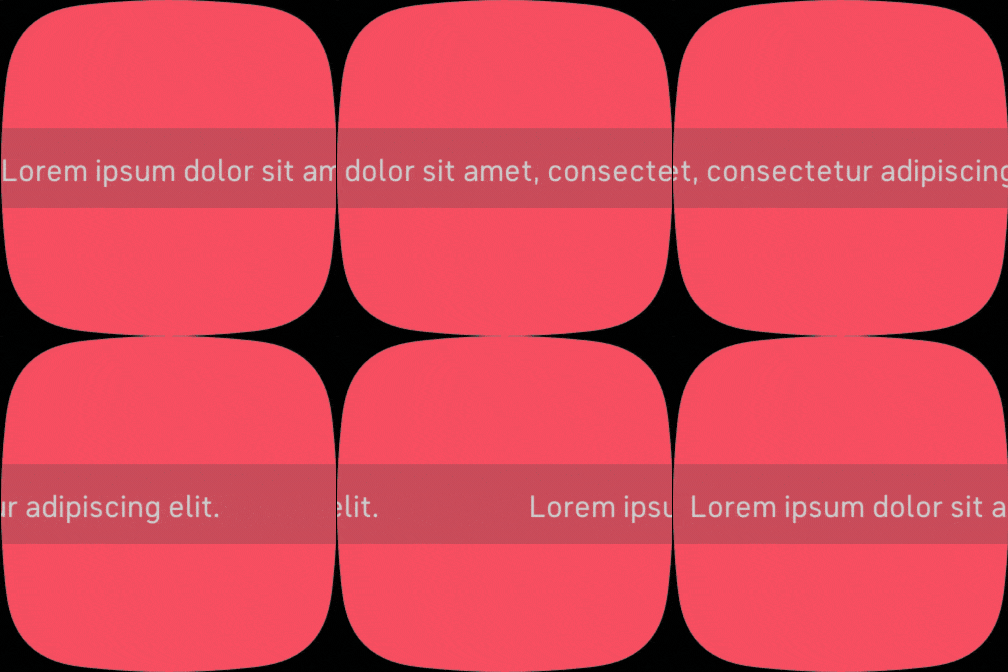
The marquee-text allows developers to easily create text that continuously
scrolls horizontally from right to left, like a ticker tape.
Configuration
value: Controls the speed of the scroll. Default speed120. Lower values are slower, higher are faster.mode: Automatically start scrolling on load, or manually trigger the scrolling with theenableevent.1Auto (default),0Manual.
The component is composed of the following SVG sub elements:
group/text: A<text>field for the scrolling text.group/separator: A<rect>used to control the spacingwidthbetween each scroll loop.
Imports
In addition to any existing imports, you must include the following imports
within your widget.defs file:
<svg>
  <defs>
    <link rel="stylesheet" href="styles.css" />
    <link rel="import" href="/mnt/sysassets/system_widget.defs" />
    <!-- Additional Imports -->
    <link rel="import" href="/mnt/sysassets/widgets/marquee_text_widget.defs" />
  </defs>
</svg>
Usage
The following example will create a marquee which begins scrolling after a 2
second delay.
Include the following SVG in your index.view file:
<svg viewport-fill="fb-red">
  <use id="marquee" href="#marquee-text" font-size="32" y="50%-40" width="100%"
    height="80" fill="white" mode="1" value="50">
    <rect width="100%" height="100%" fill="black" opacity="0.2" />
    <set href="group/text" attributeName="text-buffer"
         to="Lorem ipsum dolor sit amet, consectetur adipiscing elit." />
    <set href="group/separator" attributeName="width" to="150" />
  </use>
</svg>
Use the following JavaScript in your index.js file to trigger the enable
event by setting the element state to enabled in JavaScript:
import * as document from "document";

const marquee = document.getElementById("marquee");
marquee.text = "Lorem ipsum dolor sit amet, consectetur adipiscing elit.";

setTimeout(() => {
  marquee.state = "enabled";
}, 2000);
